
Hello,
Thank you for visiting our Qtrac Knowledge Base library. We hope the below article will assist you. Based on your inquiry, it looks like you are trying to Publish to template functionality. In order to accomplish this, you will need the following permissions: Admin role with access to view, add/edit schedule permission.
The Publish to Template feature in Qtrac makes it easy to reuse and standardize schedule or configuration settings across multiple templates. Instead of rebuilding the same setup from scratch, administrators can quickly apply the configuration from an existing template and overwrite another template in just a few clicks.
This is especially helpful for organizations managing multiple locations, workflows, or departments that require consistent operating rules, hours, or service availability.
Note: Please know that this feature will work only on templates that belong to the same Workflow. For organizations that have multiple workflows, this has to be done individually for each of them. You can recognize this when you try to publish to template, if you do not see all templates that are created. This means that some of them belong to another workflow.
If you want to override another existing template using the settings from your current template, follow the steps below:
Step 1: Navigate to https://app.qtrac.com/home
Step 2: Click "Manage" in the top-right corner.
Step 3: Click "Schedules" in the left pane.
Step 4: Hover over the three dots next to the schedule which you want to publish to another templates, then click "Edit".
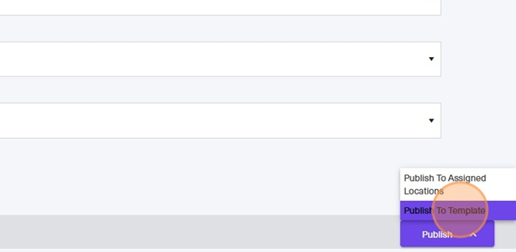
Step 5: Click the "Publish: button from the bottom-right corner of the screen.
Step 6: From the dropdown, select "Publish to Template".
Step 7: An Overwrite Existing Templates pop-up will appear. Use the Select Template(s) dropdown to choose the template you want to overwrite. You can also select multiple templates to be overwritten at the same time.
Step 8: After selecting the template, click Publish to confirm.
⚠️ Important: Overwriting a template cannot be undone. This action will erase the selected template’s existing settings and replace them with the configuration from the current template.
We hope this article helped you out with your inquiry.
If you still have any questions, please feel free to get in touch with our Qtrac Help Desk.
Was this article helpful?
Articles in this section
- How to use Insights with Customer Properties data
- How to Use Customer Properties in the Queue
- How to Download an Insights Report
- How to Share an Insights Report
- How to Use Service Guides from within the Queue
- How to use the Auto Call Feature in the Queue
- How to use Custom Tabs in Queue View
- How to use Publish to Template for Schedules?
- How to use Location Schedule Type in Schedules (Hours of Operations)
- Introducing Booking Template Durations and Intervals