
Hello,
Thank you for visiting our Qtrac Knowledge Base library. We hope the below article will assist you. Based on your search inquiry, it looks like you are trying to deploy Qtrac Kiosk URLs on IPads using Workspace ONE formerly known as AirWatch.
Audience
Customer IT Administrators using VMware Workspace ONE to manage supervised iPads.
Purpose
This article explains how to deploy Qtrac Kiosk URLs to individual iPads at individual locations, locking each iPad into Kiosk Mode so that:
Only the Qtrac kiosk URL is accessible
Users cannot exit the browser
Camera, settings, and other apps are fully blocked
The kiosk auto-launches on reboot
Qtrac does not require access to your Workspace ONE environment.
Supported Architecture (Recommended)
We recommend one of the following Apple-approved kiosk approaches:
| Option | Description | Recommendation |
|---|---|---|
| Web Clip + Single App Mode | Full-screen web app locked to one URL | ⭐ Best for single URL per device |
| Workspace ONE Web + Single App Mode | Managed kiosk browser with URL restrictions | Enterprise alternative |
| Chrome on iOS | Possible but limited kiosk controls | ❌ Not recommended |
Note: On iPadOS, all browsers (including Chrome) use Apple WebKit. Workspace ONE provides the strongest kiosk controls using Web Clips or Workspace ONE Web.
Screenshots in this article are illustrative only. Workspace ONE UEM screens, menu paths, and options may vary based on UEM version, deployment model, and tenant configuration.
Prerequisites
Before starting, ensure:
iPads are Supervised and enrolled in Workspace ONE
Devices appear in the correct Organization Group
-
You have received a Qtrac Excel file containing:
Location Name Device Serial or Asset Tag Qtrac Kiosk URL Valencia 9260490 https://app.qtrac.com/Clone-Kiosk/123456789
Phase 1 - Create a Custom Attribute for the URL (ONE TIME)
Log in to Workspace ONE UEM Console
Go to Groups & Settings → All Settings
Navigate to:
Devices & Users → General → Custom AttributesClick Add Custom Attribute
-
Configure:
Name:
QTRAC_KIOSK_URLType: Text
Allow Editable: No
Save

✅ This is done once.
Phase 2 - Bulk Import URLs from Excel (THIS IS THE BULK STEP)
In Workspace ONE, go to:
Devices → List ViewClick Bulk Actions → Import → Custom Attributes
Upload the CSV file
Map:
Serial Number → DeviceSerialNumber
Attribute → QTRAC_KIOSK_URLSubmit Import
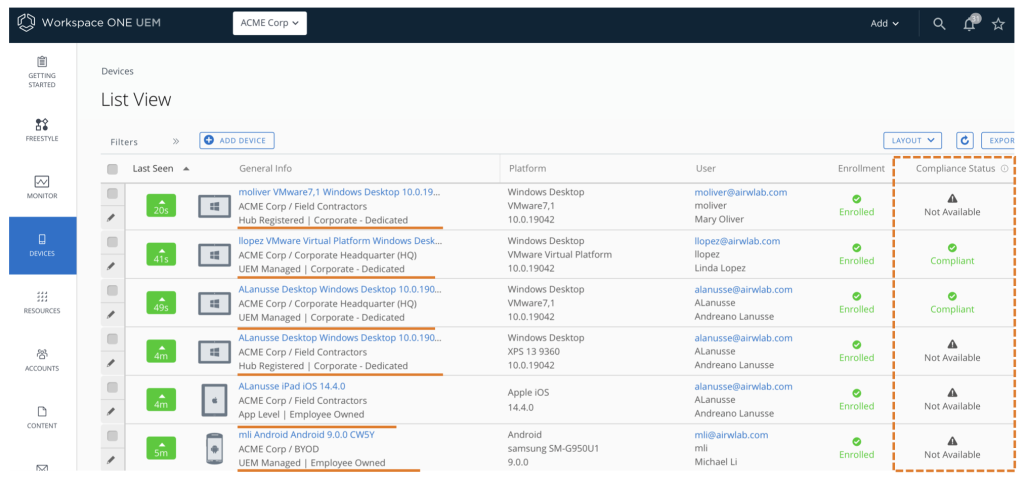
✅ Now every device has its own URL, imported in bulk.
Phase 3 - Create ONE Web Clip Profile Using the Variable (ONE TIME)
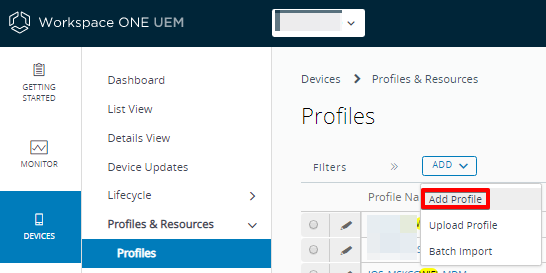
Go to Profiles → Add Profile → iOS
Add payload Web Clips
-
Configure:
Label:
Qtrac Kiosk-
URL:
{CustomAttribute.QTRAC_KIOSK_URL} Removable: Disabled
Full Screen: Enabled
Save & Publish
Assign to ALL Qtrac kiosk devices (one Smart Group)


✅ Each iPad now loads its own unique URL automatically.
Phase 4 - Create ONE Single App Mode (Kiosk) Profile (ONE TIME)
Add Profile → iOS
Select Single App Mode
-
Configure:
Lock to Qtrac Web Clip
Auto-launch enabled
Set IT-only exit passcode
Save & Publish
Assign to same Smart Group
Phase 5 - Optional Restrictions Profile (ONE TIME)
Create one restrictions profile and assign it to the same Smart Group. This is also explained in the single AirWatch deployment article here.
Expected End-User Experience
iPad boots directly into Qtrac kiosk
No Home button, gestures, or multitasking
No access to Settings, Camera, or other apps
Browser cannot be closed or navigated elsewhere
Power cycle returns to kiosk automatically
FAQ
Can we use Google Chrome instead?
Chrome can be locked as a single app, but Workspace ONE cannot reliably enforce a single fixed URL with Chrome on iPadOS. For true kiosk behavior, use Web Clips or Workspace ONE Web.
Can Qtrac manage this for us?
No. Due to customer security policies, Qtrac does not require nor request Workspace ONE access. This guide allows your IT team to deploy independently.
Can URLs be changed later?
Yes. Updating the Web App URL and republishing will update the kiosk without touching the device.
Need Help?
If you have questions about:
URL formatting
Environment setup (Test vs Prod)
Validation after deployment
Please contact Qtrac Support and reference “iPad Kiosk Bulk Deployment via Workspace ONE.”
Was this article helpful?
Articles in this section
- SMS A2P 10DLC Compliance Checklist (For Customers)
- What is A2P 10DLC for Qtrac / Explaining the SMS Opt‑In Requirement ?
- Queue View Custom Tabs Overview
- How to Bulk Deploy Qtrac Kiosk URLs on iPads Using Workspace ONE (AirWatch)
- How to Deploy Qtrac Kiosk URLs on iPads Using Workspace ONE (AirWatch)
- What is the End of Day Process?
- How to change language on the Qtrac application for non-english associates
- Qtrac Application – URL & Port Whitelisting Overview
- How can I generate a HAR file?
- Introducing Qtrac Home Interface